
FM-1 Hub
An iPhone app that installs open-source firmware on the M-VAVE FM-1 over USB, and backs up and restores what is on it.
Get FM-1 Hub on your iPhone, free
FM-1 Hub is on the App Store, for anyone with an iPhone and an M-VAVE FM-1.

Free · iPhone, iOS 17 or later · No account · GPL-3.0 · Not affiliated with M-VAVE
Want new versions before they reach the App Store? Join the free beta through Apple’s TestFlight app: testflight.apple.com/join/Rspq3M2C. Open it on the iPhone you will plug the FM-1 into.
Found a bug or have an idea? Send feedback.
Update stopped part-way, or got an error code?
What it does
Browse the catalogue
The app shows the open-source firmwares listed by the FM-1 Firmware Hub (thefirmwarehub.com), and keeps the list for offline use. Each card shows a picture of the firmware's screen, its maker, version, type, installs and stars, with a beta badge where it applies.
Search, sort, and filter by style: synths, grooveboxes, drums & samplers, chords, trackers, dev, ambient, vintage. Each firmware's page links to its project, source, editor, browser demo, cheat sheet and feedback channel.
Install over USB
Each firmware comes as a single .fwsc file, which the app calls a package. The app installs it over USB MIDI the same way the hub's installer and M-VAVE's updater do. If an update is interrupted, you can resume it with the same package.
A .fwsc from the Files app works too, for a release the catalogue doesn't list yet.
Go back to M-VAVE's firmware
One tap installs M-VAVE's current release from M-VAVE's own server. The app reads the version from the file, so new official releases appear without an app update. Or install the official V15, which the hub keeps as a recovery image; the app accepts only the exact published file.
Back up what's there
Because the FM-1 can't send its firmware back to the phone, a backup records which firmware is on it and keeps the package that installs it again. The app finds that package by itself when it can. Several firmwares can report the same identity, so if it can't tell which one is on the FM-1, you choose from a list or pick a .fwsc yourself.
On firmwares that answer Felucca's or SLOOP's backup protocol, a backup also saves your music, settings, projects and samples. Felucca's file opens in the Felucca web editor, and SLOOP's in the SLOOP web editor. The FM-1 tab says what a backup of your firmware will include. You restore firmware and music separately, and the app can do this backup automatically before every install.
Check the history
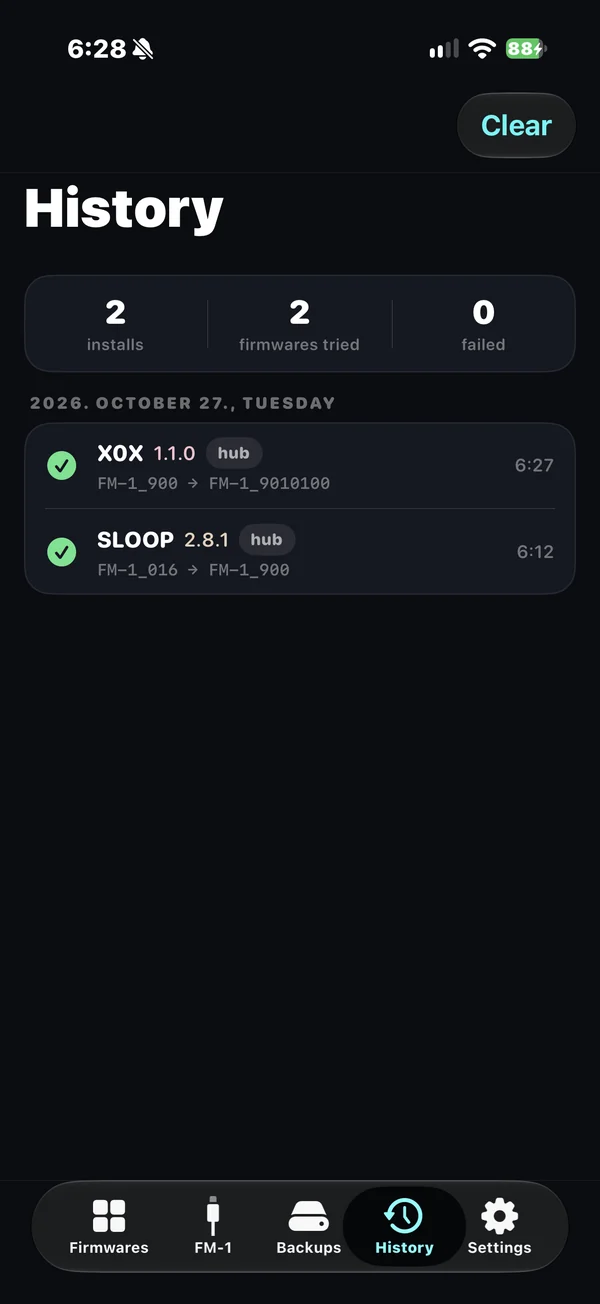
The History tab lists every install attempt: what, when, from where (the hub, a backup, a file or M-VAVE), what the FM-1 reported before and after, and the result or error.
Safety
Installing firmware always carries some risk, and the app follows seven rules to keep it down.
- 1Checked before anything is written. The package's size, the name it reports and its SHA-256 (a fingerprint that changes if a single byte of the file does) must all match the catalogue, or nothing is written.
- 2Downloads have a size limit. Anything over 4 MB is refused or stopped, and the file must be exactly the size the catalogue states. Real packages are well under 1 MB.
- 3It notes what it is about to write. Before the FM-1 switches to update mode to receive firmware, the app records the exact package and what the FM-1 reported. That record is what makes an interrupted update resumable.
- 4Resume means that exact package. Two builds of one firmware report the same name, so Resume finds the package by its fingerprint. It never uses a different build or “whatever was installed last”.
- 5Done means the FM-1 said so. The app waits for the FM-1 to restart and report what it is running, and calls the install successful only if that matches.
- 6Every package you install is kept. Packages stay on the phone until you clear them in Settings, so any firmware you installed with the app can go back on without the internet. Each backup keeps its own copy either way.
- 7It tells you when it can't. A backup with no package says so, and why. If your history or backup list can't be read, the app tells you and sets the file aside instead of overwriting it.
What it can't do
- An install can leave the FM-1 needing a rescue. Read the hub's knowledge base first, and keep the official V15 at hand.
- Firmwares are not reviewed. Each is its author's work and responsibility. Neither the hub nor this app checks what a firmware does.
- The ROM-bootloader rescue needs a computer. That rescue (the “UBOOT1.00” USB disk) is not in the app. The OCT− rescue mode is, and works with the normal Install.
- Music backup needs Felucca's or SLOOP's protocol. Other firmwares have their own editors and backup tools, and the app tells you when music backup isn't available. On other firmwares that answer SLOOP's protocol it saves the music but can't put it back, and says so.
- Some firmwares have their own installer. The package alone is not all of them, so their page and their backups link to the maker's own page instead of offering Install or Restore.
The five tabs
The manual below refers to them by name.
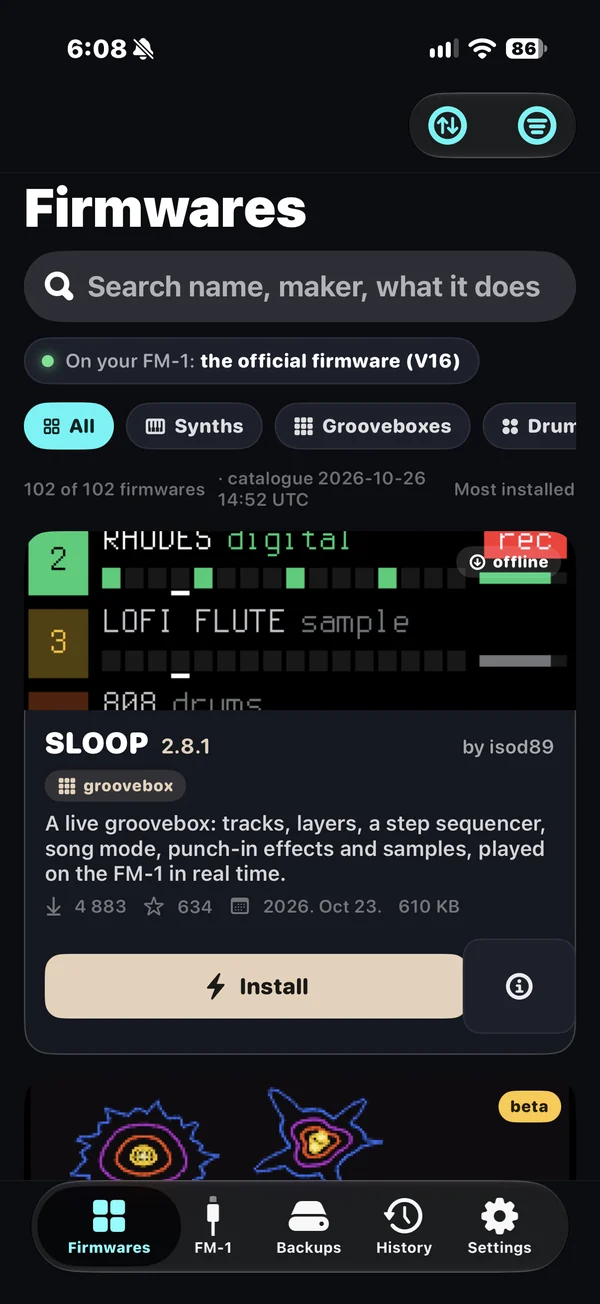
- Firmwares. The catalogue: search, filters, sort, list or grid, and a detail page for each firmware.
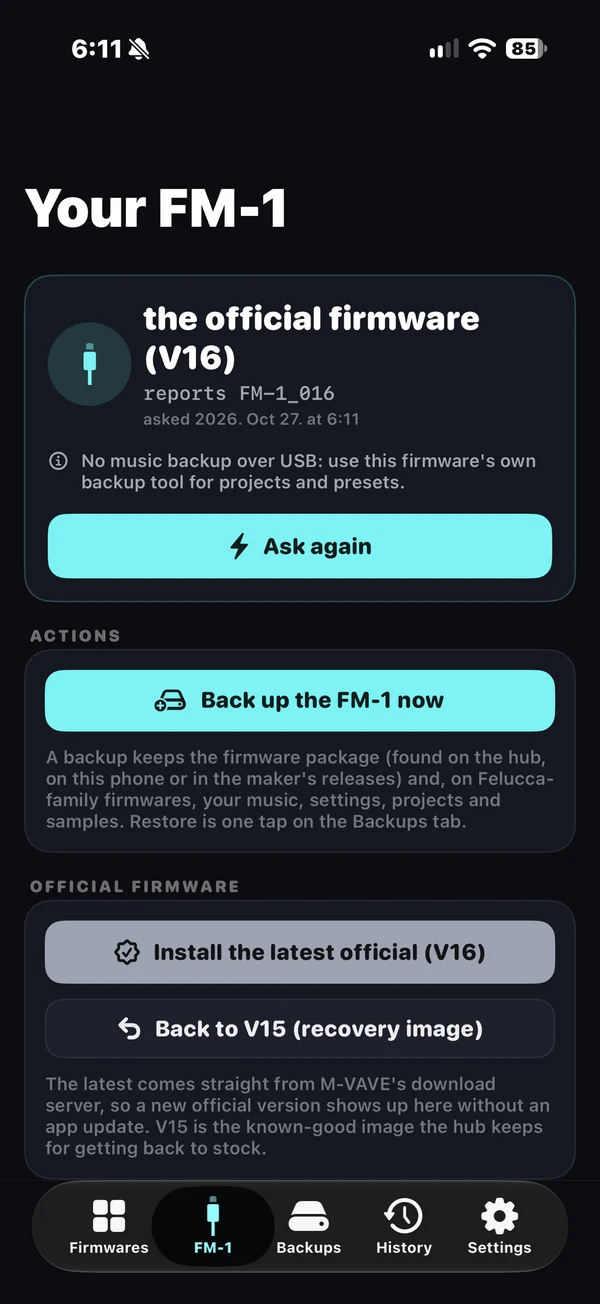
- FM-1. Your synth: connect, see what it is running, back it up, check its MIDI ports, resume an unfinished update, install M-VAVE's firmware, and read the log.
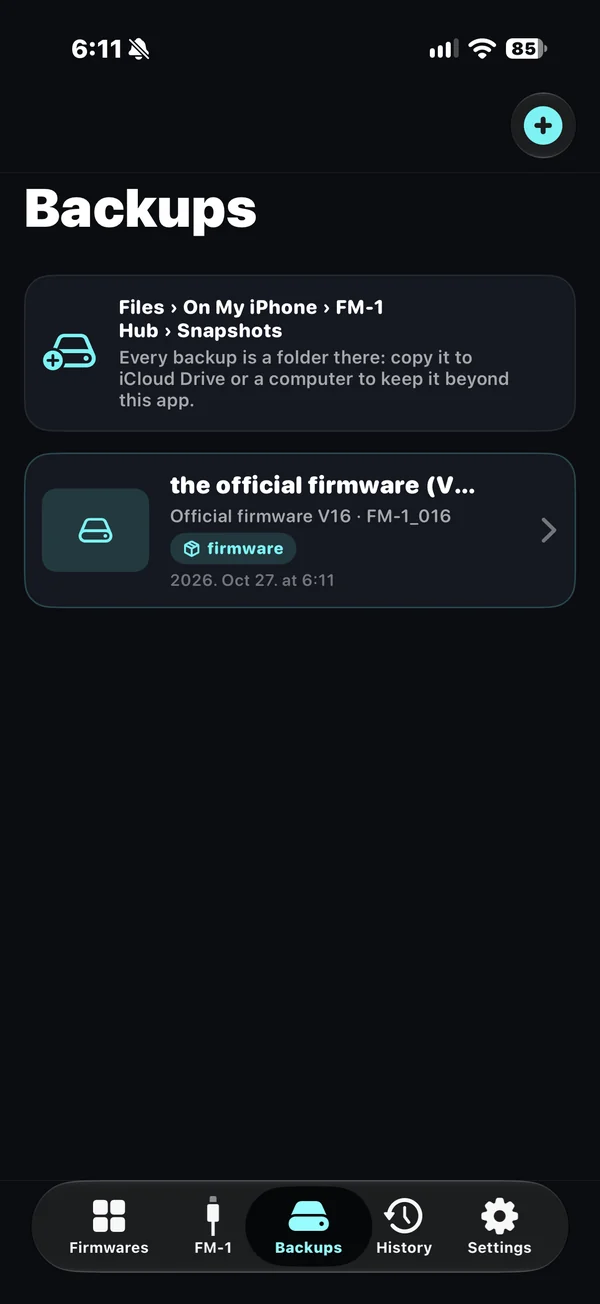
- Backups. Your backups. Open one to restore its firmware or music archive, share its files, rename or delete it. A note says if anything is missing or unconfirmed.
- History. Every install attempt, grouped by day, with totals at the top.
- Settings. Install and MIDI options, storage sizes, links, and About.
What you need
- An iPhone with iOS 17 or later. iPad runs the app, but connecting to the FM-1 needs an iPhone.
- iPhone 15 or newer: a USB-C to USB-C cable into the FM-1.
- Older iPhones: Apple's Lightning to USB camera adapter, best the powered one.
- No driver. The FM-1 is a standard USB MIDI device, so there is nothing to install.
- Power. If the FM-1 doesn't power up from the phone, use a powered USB hub or the adapter's power input.
- Close other MIDI apps before installing. They keep the MIDI port busy.
Manual
User manual
Read it in order the first time. Every section and every error code has its own link.
Words used in this manual
- The hub
- The FM-1 Firmware Hub (thefirmwarehub.com), which lists the firmwares the app shows.
- Package
- A firmware file (
.fwsc). - Identity
- The short name a firmware reports, such as
FM-1_904. - SHA-256
- A file's fingerprint. It changes if a single byte of the file changes.
- Update mode
- The FM-1 is running its update loader, which receives new firmware. It stays in update mode until an update finishes.
- Felucca family
- Felucca and the firmwares built on it that answer its backup protocol, such as Melodee, Ghoulbox and ChoralRoot.
- SLOOP
- A firmware with its own backup protocol, which some firmwares built on it also answer, such as Floyd and sloopDX.
- 1Plug the FM-1 into the iPhone and switch it on.
- 2Open the app. The first time, a warning asks you to accept the risk of installing firmware. Then go to the FM-1 tab and press Connect.
- 3The card shows what the FM-1 is running. If the firmware is in the catalogue, you see its name and version. If several firmwares report that identity and this one doesn't name itself, the card lists them or says how many. If the hub doesn't have that version, the card says so, gives the version the firmware names if it names one, and shows the raw identity, such as
FM-1_904. - 4Below that, the app says whether a backup of this firmware will include your projects and samples, or only the firmware, and whether it can put the music back.
If no FM-1 is found
The app lists the other MIDI ports it can see and asks “Is one of these your FM-1?” Some firmwares name their USB port after themselves. Tap the right one and the app remembers it. Asking writes nothing to the FM-1.
If the list is empty, check the cable, close other MIDI apps, and turn on Settings → MIDI → Ask every MIDI port.
Do this before every install.
- 1On the FM-1 tab, press Back up the FM-1 now. Give it a name or keep the suggestion.
- 2The app records which firmware is on the FM-1 and looks for the package that can put it back: first the hub's catalogue, or the maker's GitHub releases if the firmware names a version the hub doesn't have. A firmware the hub doesn't know is looked for on this phone, on M-VAVE's server and in its maker's releases. If several firmwares report that identity and this one doesn't name itself, the app leaves the choice to you.
- 3On a firmware that answers Felucca's or SLOOP's backup protocol, it also saves your music archive over USB: everything the firmware lists, such as current music, settings, projects, user banks, FM6 patches and sample slots.
- 4The app tells you what it saved, what it couldn't, and why. If the package is missing, open the backup on the Backups tab later and press Choose the firmware or Pick its .fwsc from Files. The backup completes itself. A backup marked unconfirmed or hub's version holds a package that may not be what was on the FM-1. Its page says why and lets you pick another. A mark can stay even then: the app has no way to check a package against what was on the FM-1.
Back up automatically
Settings → Installing → Back up before every install is on unless you turn it off. When the running firmware answers Felucca's or SLOOP's backup protocol, its music is saved before each install, with the package if the app can find it. If that backup fails, the install stops before anything is written. Other firmwares install without a backup: press Back up the FM-1 now to keep the package, and save your music with their own tool.
- 1On the Firmwares tab, pick a firmware, read its detail page, and press Install.
- 2The app downloads the package and checks it against the catalogue.
- 3The progress sheet moves through six stages: Starting → Checking the package → Starting the update loader → Writing → Restarting → Done. The bar counts the FM-1's actual requests for data, so the progress it shows is real.
- 4The FM-1 restarts and reports its new identity. The app checks it against the package before it records the install as successful.
While it is writing, don't unplug the cable. If you can, don't let the phone go to sleep.
To install M-VAVE's own firmware
On the FM-1 tab, under Official firmware, press one of:
- Install the latest official. The button shows the current version, such as V16. The firmware comes straight from M-VAVE's download server.
- Back to V15 (recovery image). The known-good image the hub keeps for getting back to stock, accepted only as the exact published file.
To install a .fwsc you already have
On the FM-1 tab, open More and log and press Install a .fwsc from Files (last resort). Use it for a GitHub release the catalogue hasn't picked up yet, or for M-VAVE's own download. The app refuses any file that isn't for an FM-1.
You can finish it.
The FM-1 stays in update mode until an update completes.
- 1Unplug the USB cable, plug it back in, and press Connect.
- 2The FM-1 tab shows an update-mode card naming the firmware that was being written.
- 3Press Resume. The app finds that exact package and continues the update.
To install something else instead, pick any firmware from the catalogue. That continues the update too.
If the card doesn't know which package it was
Another updater, or an older version of this app, started the update. Install any firmware from the list. It continues from the same place.
If the FM-1 doesn't come back at all
- 1Switch the FM-1 off and on again.
- 2If it still doesn't start, hold OCT− while switching it on. This starts rescue mode.
- 3Install again.
Find the code the app showed you.
No FM-1 answered.
Plug the FM-1 in by USB, close other MIDI apps, then try again.
The package is for a different model than the connected device. Nothing was written.
Check you picked a firmware for the FM-1.
The update loader (which receives the new firmware) did not appear after step 1.
Still stuck? Hold OCT− while switching the FM-1 on, then press Install again.
The FM-1 or its update loader stopped part-way.
Replug the USB cable and press Install again: the device stays in update mode until it is finished.
The FM-1 was disconnected part-way.
Replug the USB cable and press Install again: the device stays in update mode until it is finished.
The firmware was sent, but the FM-1 did not come back.
Power-cycle the FM-1 (switch it off and on). If it does not start, hold OCT− while switching it on and install again.
The firmware was written, but the FM-1 reports a different identity than expected.
Check the firmware's own notes; reinstall, or restore a backup.
The FM-1 is in another firmware's own update mode.
Finish that update with its own updater.
A package failed its checks or could not be saved on the phone, or a SLOOP archive was made on a firmware that reports another identity.
Refresh the catalogue and try again; free space if the phone is full. For a SLOOP archive, restore the firmware first.
The FM-1 asked for data that isn't in the package.
Report it — the package and the device disagree.
The backup exchange with the FM-1 went wrong.
Stop playback on the FM-1 and try again. When you restore music, the app may ask you to restore the firmware first.
The MIDI port could not be opened.
Close other MIDI apps and replug.
A backup failed. Nothing was written to the FM-1.
Stop playback on the FM-1 and try again. If it happened before an install, you can also turn the automatic backup off in Settings.
You stopped it.
—
If the app says your history and backup list could not be read
Your backup folders are untouched, and the lists start empty. The app keeps the unreadable file in its folder as library-unreadable-….json, named after a fingerprint of its contents. If it can't even make that copy, it writes nothing over the original until you free some space. To have the file looked at, copy it out through Files.
Restore the firmware first, then the music.
- 1On the Backups tab, open a backup.
- 2Press Restore the firmware. The app checks the kept package against the fingerprint it saved, then installs it.
- 3If the backup has a music archive, press Restore the music archive. A Felucca-family archive needs a Felucca-family firmware on the FM-1. If there isn't one, the app stops and asks you to restore the firmware first. On a different Felucca-family firmware the music still goes back, and if it reports another identity than the archive's, the app says so. A SLOOP archive goes back only to SLOOP, on the same identity. For another firmware that answers SLOOP's protocol there's no button: the app says it can't put the music back, and that firmware's own web editor may open the file.
Delete this backup removes the backup and its folder. Clearing the package cache in Settings never deletes backups.
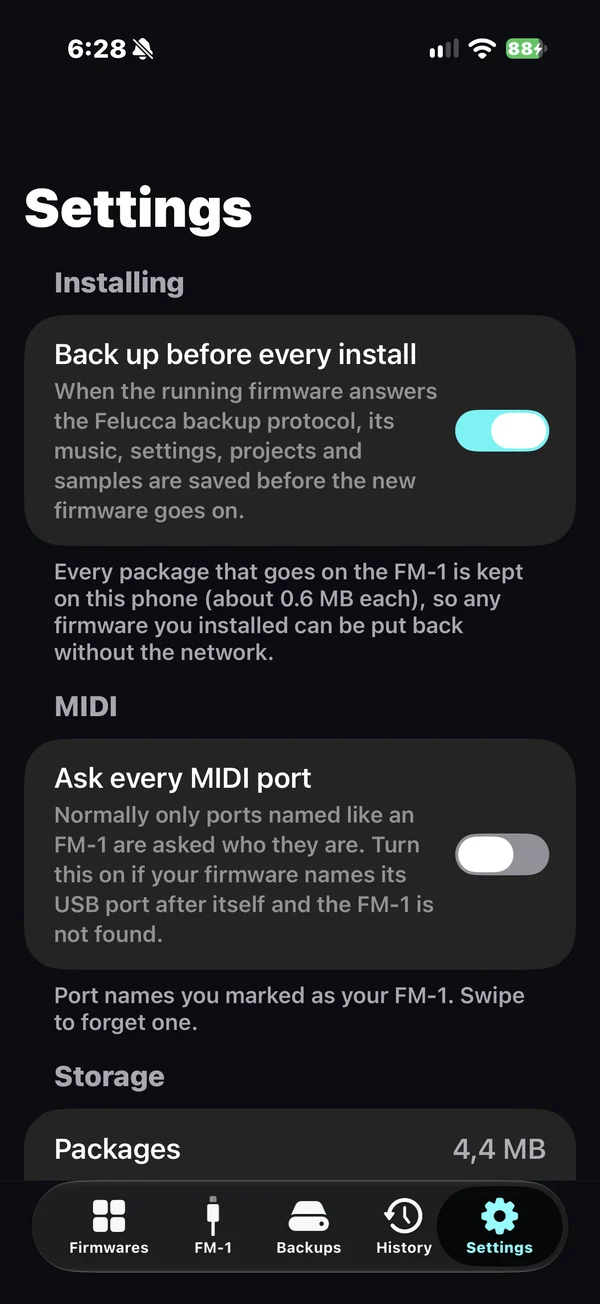
- Installing → Back up before every install
- When the running firmware answers Felucca's or SLOOP's backup protocol, saves its music, settings, projects and samples before the new firmware goes on. Other firmwares get no automatic backup. Every package that goes on the FM-1 also stays on this phone (about 0.6 MB each), so it can go back on without the internet.
- MIDI → Ask every MIDI port
- Normally the app only asks ports with FM-1-like names who they are. Turn this on if your firmware names its USB port after itself and the FM-1 isn't found.
- MIDI → ports you marked
- Port names you marked as your FM-1 are listed under MIDI. Swipe one to forget it.
- Storage
- Space used by the package cache and the backups, and a way to clear the cache. Clearing it deletes the packages kept from past installs, so putting those firmwares back needs the internet again; each backup keeps its own copy. Backups are never deleted here; each has its own Delete this backup button. Everything stays on the phone, nothing is sent anywhere, and there is no account.
- Links
- Send feedback, the hub, its knowledge base, the wall of creators, M-VAVE's downloads, and this app on GitHub.
- About
- What the app is, whose work the firmwares are, and the licence notice.
In the Files app, under On My iPhone › FM-1 Hub. You can copy anything there to iCloud Drive or a computer. Each backup is a folder in Snapshots: copy it out to keep it beyond this app.
Packages/- Downloaded
.fwscfiles, namedid-version-sha8.fwsc, where sha8 is the first 8 characters of the file's SHA-256. Clearing the cache in Settings empties this folder. Snapshots/<uuid>/package.fwsc- The package kept with a backup. Each backup has its own folder.
Snapshots/<uuid>/felucca-backup.json- The music archive, which also opens in the Felucca web editor.
Snapshots/<uuid>/sloop-backup.json- The music archive of SLOOP, which also opens in the SLOOP web editor, or of another firmware that answers its protocol.
library.json- The install history and the list of backups.
Detail · optional reading
The FM-1 can't send its firmware back over MIDI. In an update, it asks the phone for the package piece by piece (0x30 read requests against the logical image, answered with 7-bit packed data). Nothing can copy the firmware off the device, so a firmware backup is a copy of the package, identified by its SHA-256, which the app keeps.
Music and settings use a different protocol (F0 7D 46 4C …), offered by Felucca-family firmwares, by SLOOP and by firmwares built on it, with different command numbers and file formats. The app uses it when the FM-1 answers BACKUP_LIST.
You need Xcode 16 or newer, an iOS 17 deployment target, and a free or paid Apple developer account to sign for a device.
- 1Open
FM1Hub.xcodeproj. - 2Select the
FM1Hubtarget → Signing & Capabilities → pick your Team. Change the bundle identifier (com.debreczi.fm1hub) if Xcode asks. - 3Plug in the iPhone, choose it as the run destination, and press Run.
- 4On a free account, trust the developer profile on the phone under Settings → General → VPN & Device Management.
The Simulator has no USB MIDI. The catalogue, filters, history and backups work there, but connecting to an FM-1 needs a real phone.
github.com/debreczi/fm1firmwarehost